Motion

A brand that moves money, needs an identity that moves too.

A circle moves left and right on a loop.
Principles

Follow these 3 simple principles to ensure we flow just as the world’s currencies do.


Snappy

Wise is revolutionising banking by challenging old systems that restricted money. In motion we communicate breaking away from institutions with snappy, simple, fast and satisfying movements. Like flipping a coin.

But it’s not hyperactive, erratic or rushed. Let’s not give people motion sickness.

Three graphs animate one by one into frame.

A match cut creates a snappy transition by smoothly aligning animated properties like movement and shape between scenes.

A flag in the shape of a circle spins, changing colour and flag on each rotation.

The above example also uses a match cut technique to create a snappy but smooth transition.

Fluid

Wise is on a mission to make money borderless. For money to become borderless it takes on a fluid state. In motion we communicate fluidity with organic and flowing movements.

Fluid is not a kite in the wind — unstable and directionless, with nothing to hold on to.

Text moves in and out of scene.

A fluid rhythm can be created by transitioning elements, such as text and icons, into and out of a scene.

A checkmark animates into frame to reveal a colourful tapestry.

Tapestries contain many animated layers that can also add fluidity and depth when used.

A users taps on a balance card to open a new New Zealand account.

Morphing elements to transition from one scene to the next can achieve a sense of fluidity.

Intuitive

People are leading increasingly global lives, yet the tools available for managing money remain outdated. At Wise, we prioritise transparency, speed, and ease of use in the services we offer to our customers. Through motion, we convey our human-centric approach with a natural pace and a sense of physical weight in movement.

Intuitive isn’t crudely handmade, polished to perfection or complicated, intuitive is natural.

Phone UI animates,

The UI elements move intuitively, mimicking a natural user interaction scrolling through the different balances.

Number inputs on calculator scale up and down as user interacts with UI

Numbers scale as the user interacts with the calculator, toggling between input values. The animations provides immediate and clear feedback.

Applying principles

Here is a deeper dive into how to apply the motion principles. These aren’t rules, but tips on how to make motion feel distinctly Wise, and how to avoid going too far.
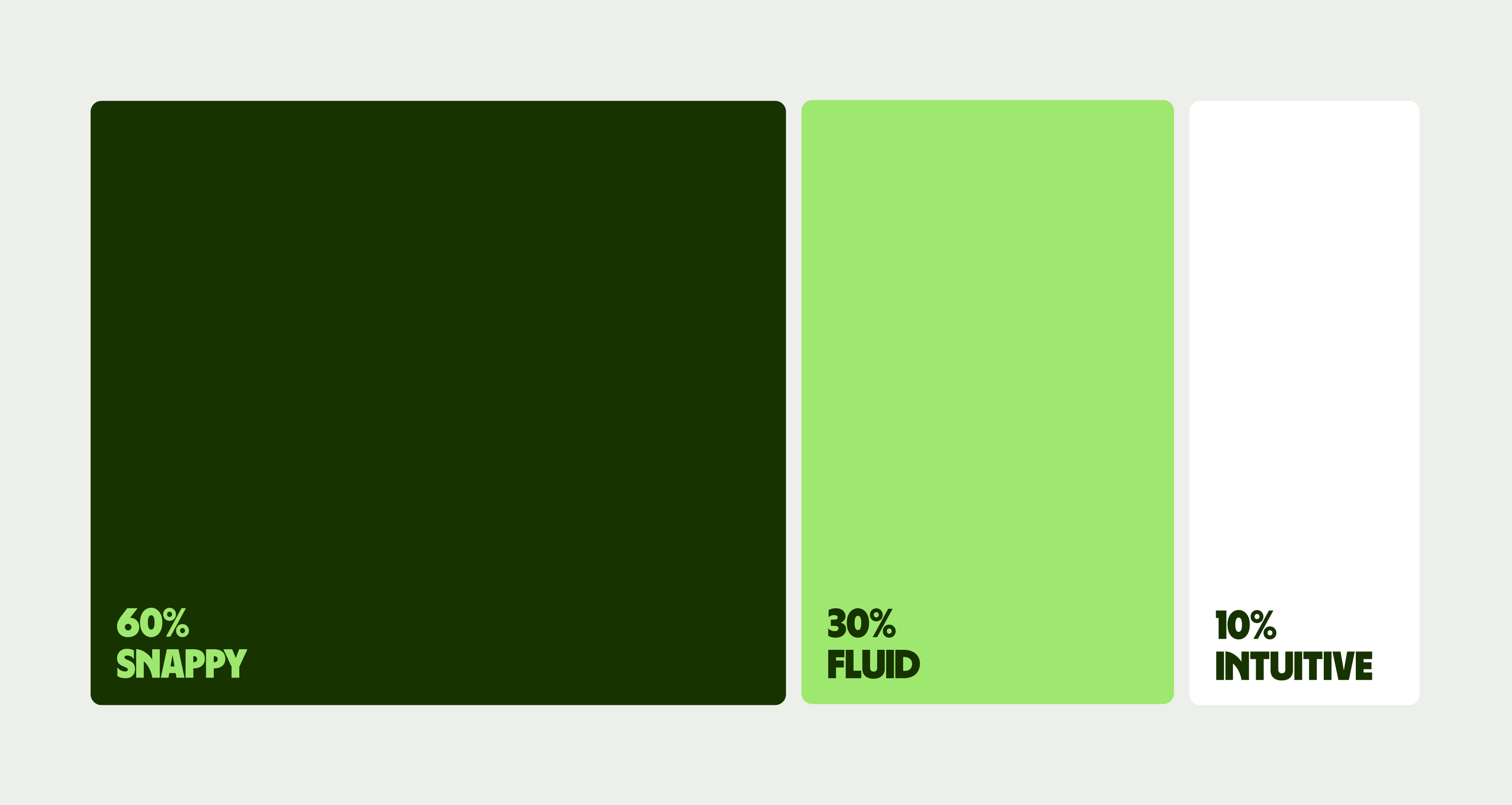
One graph is titled 60% snappy, the second graph is titled 30% fluid and the third graph is  titled 10% intuitive.

Speed graphs

Our motion should feel natural and human, like the swipe of a finger. Motion shouldn’t feel stiff or mechanical.

Arrow moves left in a natural movement.

Natural Movement

Arrow moves left in a mechanical movement

Visual intensity

Snappy allows us to be visually bold and exciting. But be careful not to become inaccessible and disorientating.


Text and colour animates in and out of frame smoothly

Intentional and paced

Text and colour animate in a disorienting manner, moving in and out of the frame.
Critical banner UI component

Product UI colours used within UI

The colour red used as a background colour.

Repetitive fluidity

Our motion should be fluid and rhythmic, which means hitting the right beats. Motion that doesn't land or rest becomes nauseating.

Texts moves in and out of frame smoothly

Steady rhythm

Individual letters animate up and down in a very loosely
Tapestries in Motion

Our tapestries are bold and expressive. But with motion, they really come alive.

Work with layers

Our tapestries are artworks full of detail, and animating them flat doesn’t do that justice. Using the original .PSB files, retaining the same .PSB layer modes animate each layer individually using the positioning, scaling and timings values. Explore the details of the entire tapestry, play with crops, but always consider the final, full layout.

Finish with a displacement map and noise

The final touch is generating gentle, water-like fractal noise and subtly applying a displacement map layer to our tapestry. Now it flows, natural and expansive, and delightful to watch.

Illustration in motion

Add an extra dimension to illustrations with motion. Both objects and tapestries can move to bring them to life. Just make sure things feel fluid, appropriately paced and looped to get the best desired effect.


A paper plane flys seamlessly

Animating tapestries

We’ve applied distortions to our tapestries to create areas of fast and slow movement, giving each a slightly magical way of moving. We achieve this by warping the object UVs to create areas of high and low tension. In Cinema 4D this can be done simply by distorting the UV mesh slightly with soft selection turned on, or by using the ‘weld and relax’ command with a only a few discreet edge cuts.
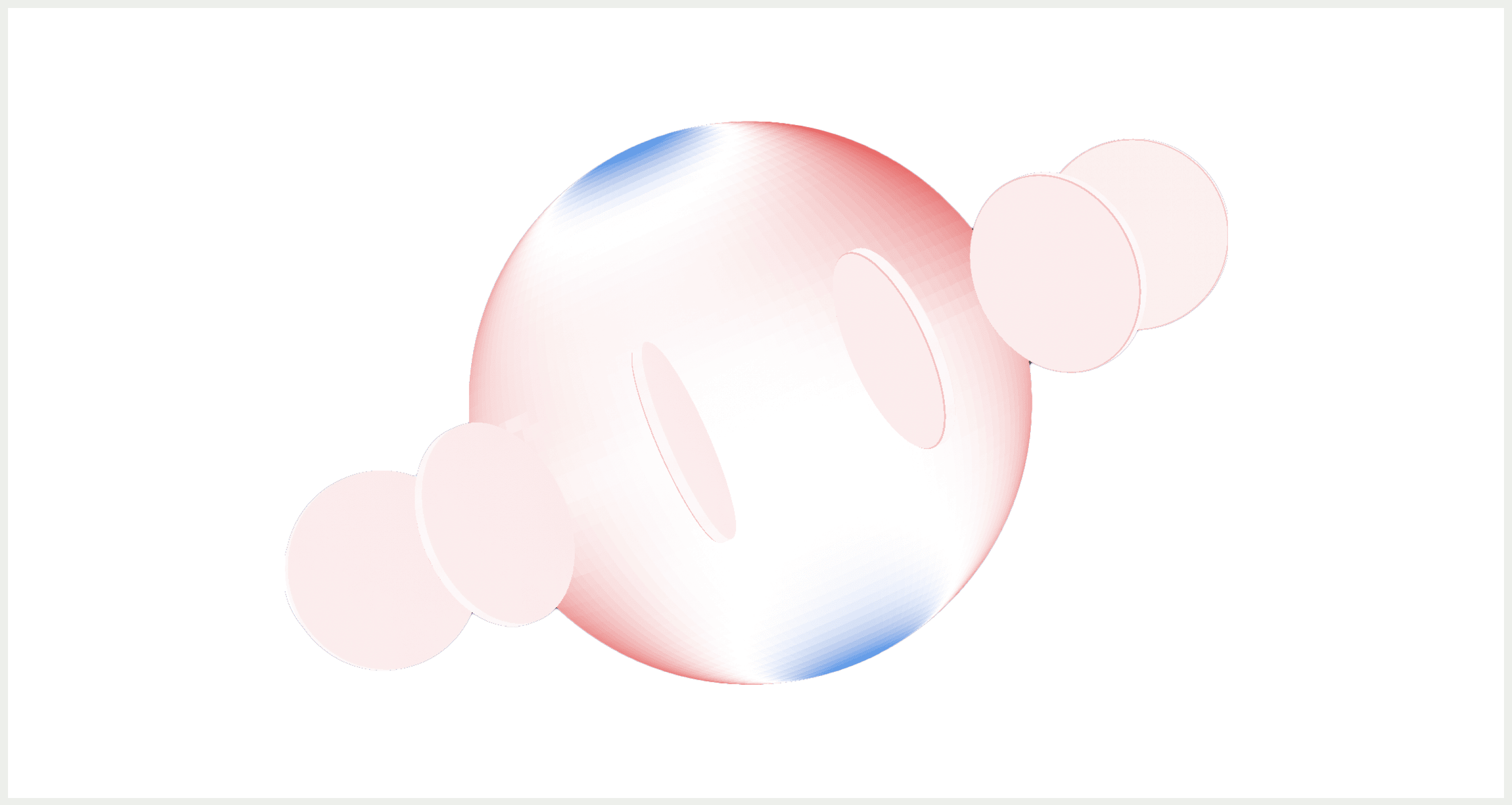
A detailed UV mesh highlight the globe illustration

Animating form

To make the most of our message we can also animate the form of the illustration itself. This can be a slippery slope, so here's a few tips on to stay on your feet (and on brand).

Flag animates in the wind, creating a wave like effect.
Fluid and steady motion

Our illustrations are purposefully bright and expressive. The last thing we want is motion weighing them down. Keep it grounded and make sure they loop seamlessly.

Coins rotate around a 3D globe in a seamless loop.
Geometric alignment

Motion should make our illustrations sing, not tear them to pieces. Keep everything moving along an axis to keep them in perfect harmony.

Accessibility

All video content should be accessible to people with visual and/or hearing impairments. Below are a four ways you can make your videos more inclusive and compliant. 
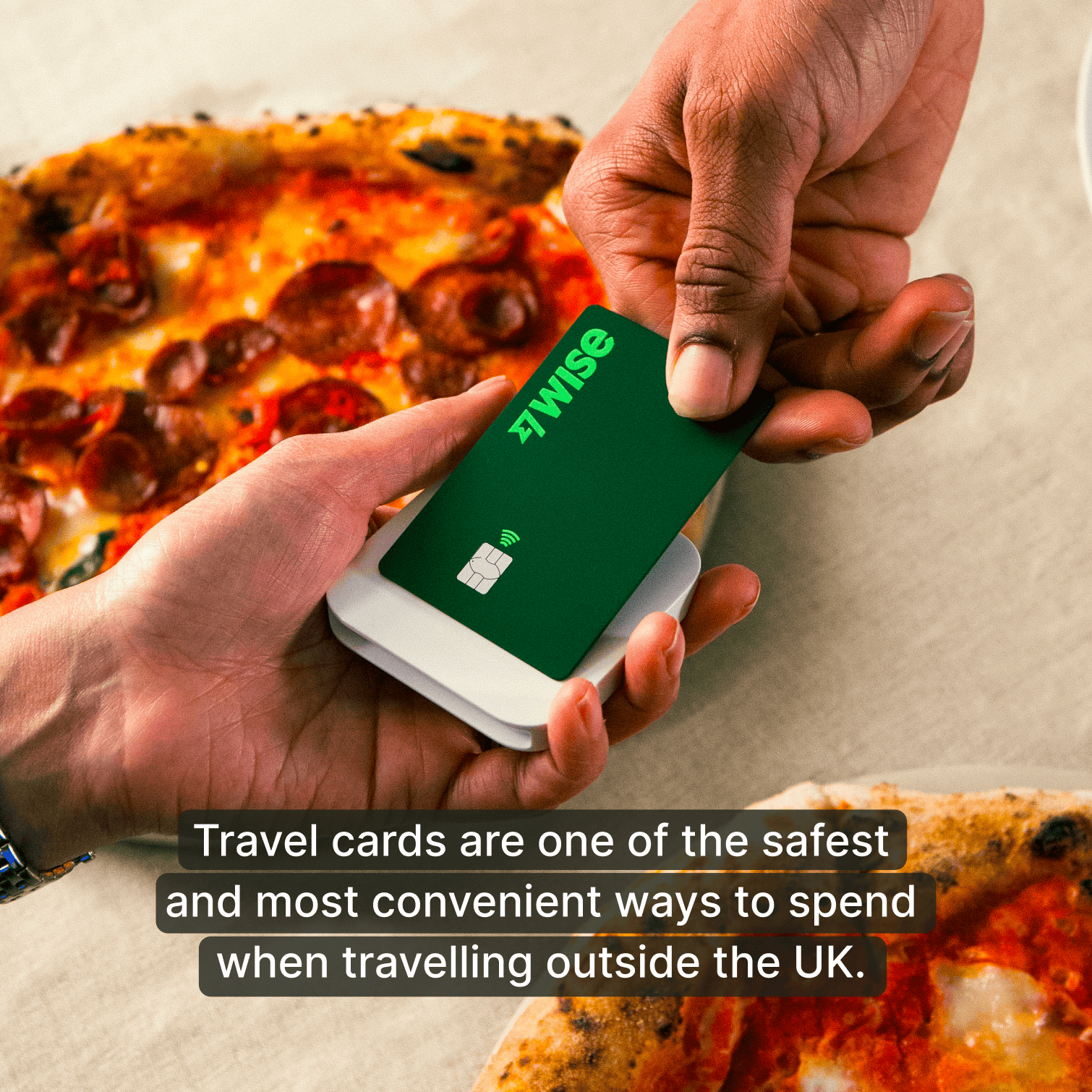
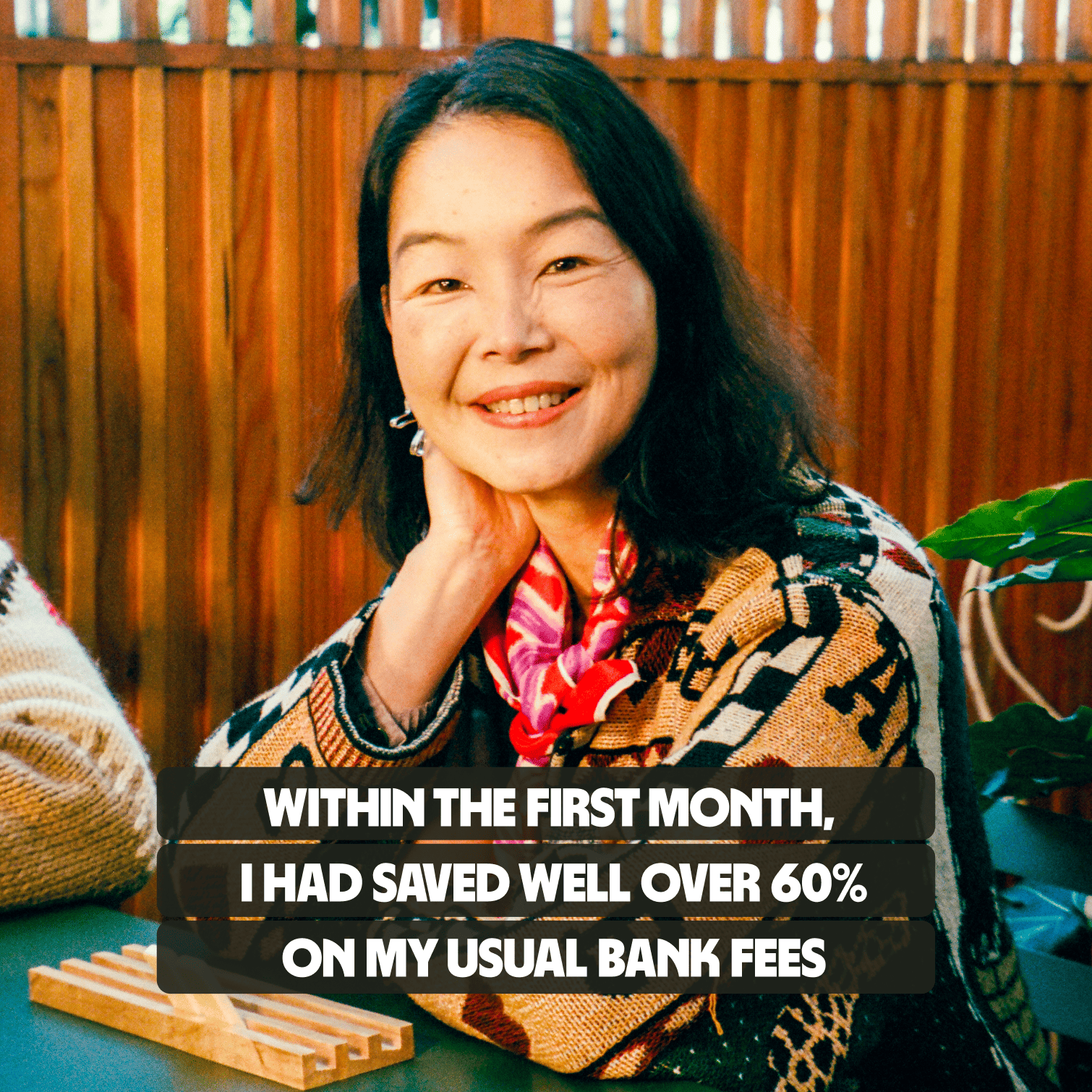
The caption sentence is placed at the bottom of the image in the foreground. The text is white and background colour is back.
Captions

Video captions are synchronised text displayed on a video showing dialogue, sound effects, and important audio cues.

Most platforms use speech recognition technology to automatically add captions to videos. While useful, these captions may have errors. Ensure that you review captions to reduce errors.

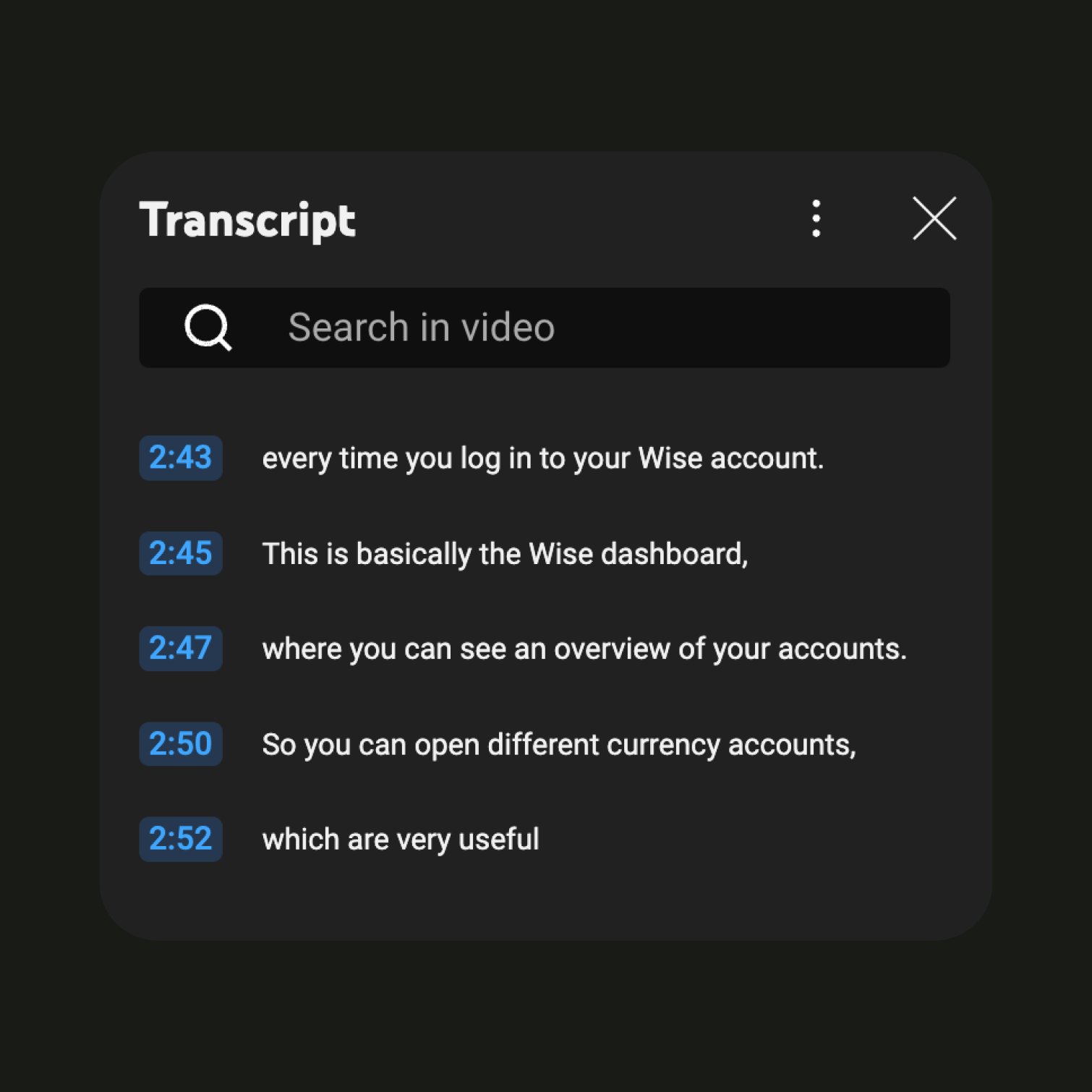
A list of time stamps next to sentences.
Transcripts

Transcripts provide the full text of a video's audio, including dialogue and narration. Transcripts allow people to quickly search for key words of phrases.

Similar to captions, most platforms use speech recognition technology to automatically generate transcripts for videos. However, it is still important to review these transcripts to minimise errors, as this technology is not always accurate.

A icon of set of headphones
Audio

Audio descriptions are narrations of the visual elements of a video. Audio descriptions help people who are visually impaired by explaining what’s happening visually.

Unfortunately most platforms do not offer automated audio descriptions. However, there are plenty of third party tools that can be used to generate audio descriptions for videos. More information how to produce audio descriptions can be found on the WCAG website.

A Coin spins very fast and each time the coin rotates the colours change.
Flashing colour frequency

We use snappy cuts a lot in our brand, and it’s essential that we never make something that’s a flashing colours risk. Repeated changes in colour should be no more than three changes within a period of one second.

Caption best practices

Below are a few best practices when using captions on your videos. For more information you can also refer to our typography page or the UK government accessibility guidelines.
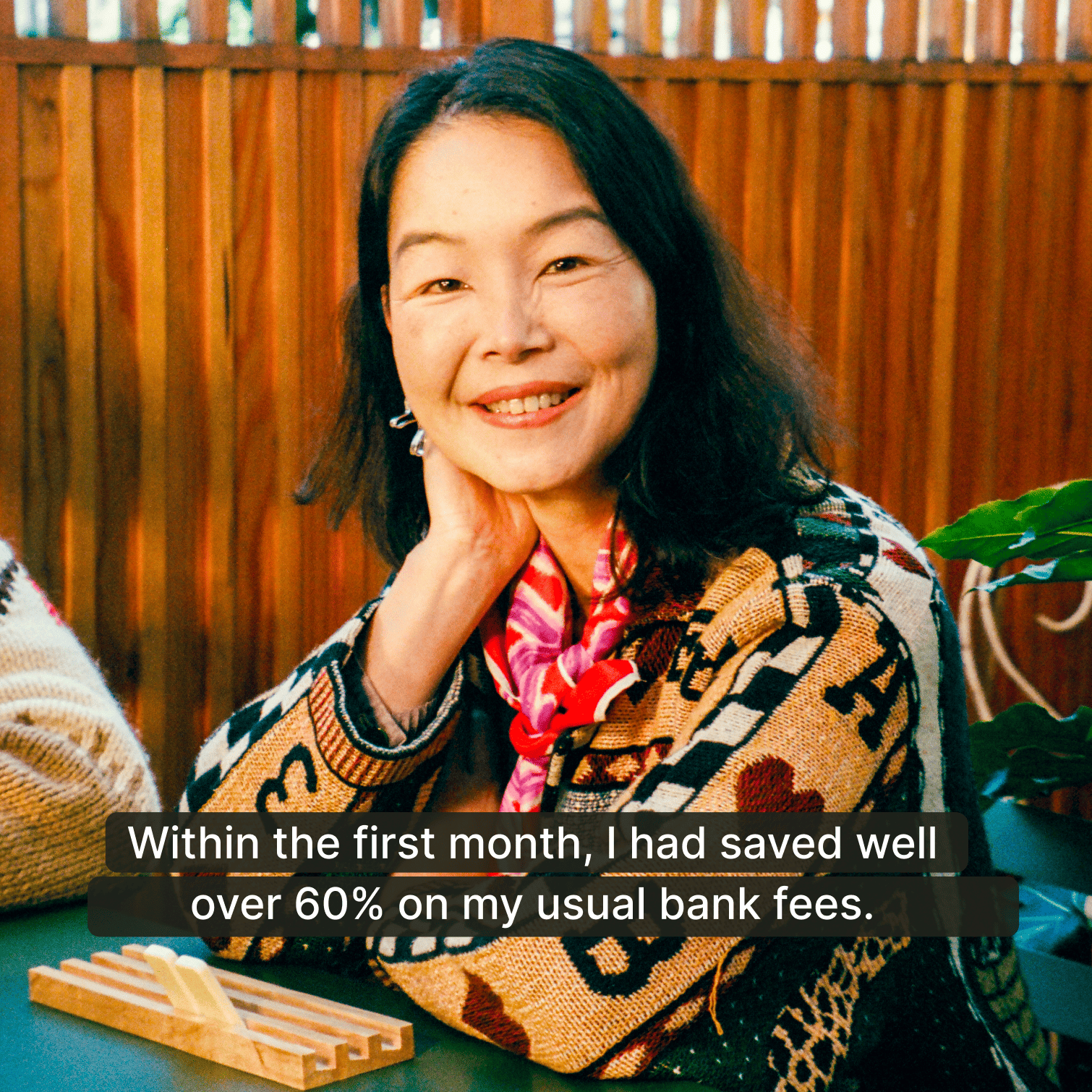

White caption text in the Inter font is positioned at the bottom of the image, highlighted with a black background for visibility.

Sans-serif fonts like inter are the most commonly used for captions because they are clean and easy to read, even on small or busy screens.

White caption text in the Inter font in all caps writing is positioned at the bottom of the image, highlighted with a black background for visibility. All caps writing is not legible.
White caption text in the Wise sans font is positioned at the bottom of the image, highlighted with a black background for visibility. The wise sans font is hard to read.
Archived copy · notes